
How to Recover Deleted CapCut Projects and Videos in 2025
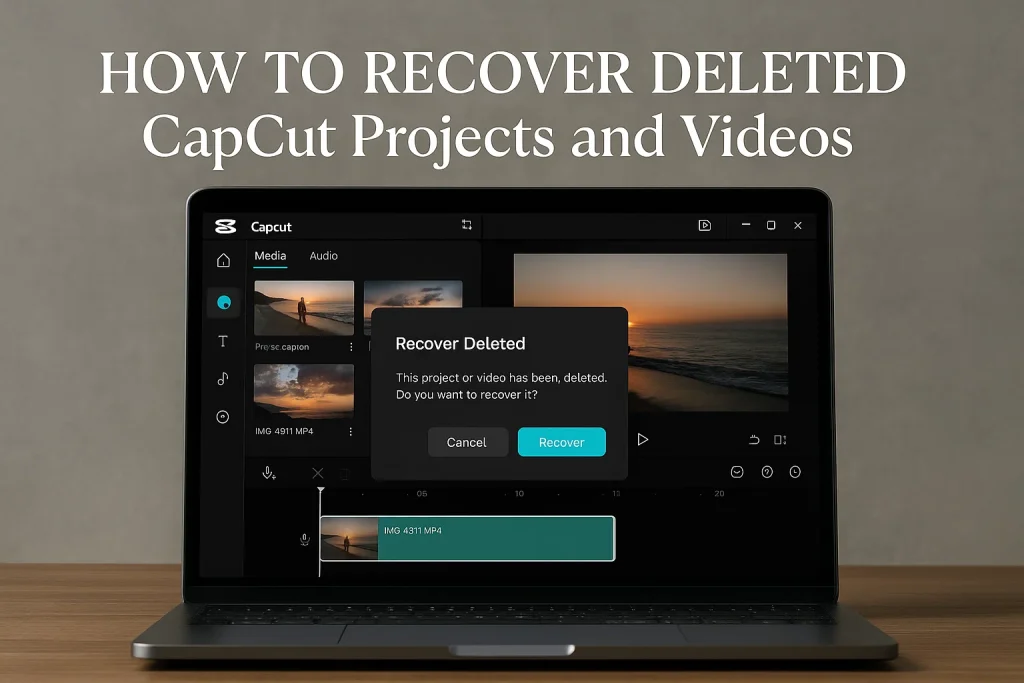
Losing a CapCut project you spent hours editing isn’t just frustrating — it’s emotionally draining. As a video editor and content creator with over six years of experience, I’ve seen how one accidental tap or system glitch can undo days of creative work. Whether you’re editing a trending TikTok, a brand campaign, or a personal vlog, every clip, cut, and transition represents time, effort, and often, irreplaceable moments. That’s why knowing how to recover deleted CapCut projects and videos isn’t just useful — it’s essential.
In today’s fast-paced content game, most creators don’t think about backups until it’s too late. CapCut, though powerful and beginner-friendly, doesn’t always make recovery obvious. And when that “project deleted” message pops up, panic usually follows. But here’s the good news: recovery is often possible — if you act quickly and know where to look. That’s exactly what this guide will walk you through — real, tested methods to get your work back without the tech jargon.
If you’re here, chances are you’re already stressed — so let’s skip the fluff. I’ve compiled every method I’ve personally used or guided others through to recover lost CapCut content, across mobile and desktop. Whether your project vanished after an update, crash, or by accident, this guide is here to help you fix it — fast.
Can You Recover Deleted CapCut Projects or Videos?
Before we dive into recovery methods, it’s important to understand what exactly you’ve lost — because not everything in CapCut is treated the same. A project is your editable timeline: clips, transitions, text layers, music, and effects — all still in their raw, tweakable form. An exported video, on the other hand, is the final product: a rendered file saved to your device. So if a project gets deleted, you’re losing the editable version. If a video goes missing, you’re losing the finished output. Both hurt — but your recovery options are very different.
Now, here’s the truth no one tells you: CapCut doesn’t automatically back up everything to the cloud unless you’re signed in and actively syncing your projects. If you’re editing offline or not logged in, everything is saved locally on your device — which is more vulnerable to accidental deletion, app crashes, or system updates. In most cases, deleted exported videos can be recovered from local storage or trash folders. But projects are trickier — unless you’ve enabled cloud sync or manually backed them up, they’re often lost for good once deleted. That’s why knowing where your content lives — and how CapCut stores it — is key to recovering it.-these paragraphs are the backbone of a blog which decide factors like bounce rate and dwell time (so write carefully)
Method 1: Recover from Recently Deleted Folder (If Available)
As a video editor and writer with years of hands-on experience, I’ve seen how often creators forget to check the simplest place first — the Recently Deleted or Trash folder. Here’s how to do it effectively:
What You Need to Know:
- Some old versions of CapCut (especially on mobile) temporarily move exported videos to a “Recently Deleted” folder before fully removing them.
- CapCut project files (your editable timelines) do not go to trash folders — once deleted in-app, they’re usually gone for good.
- Your phone’s system (iOS or Android) may store deleted videos in its native trash/recycle bin for up to 30 days.
How to Check on iPhone (iOS):
- Open the Photos app.
- Scroll to Albums > find Recently Deleted.
- Look for your exported CapCut video.
- Tap Restore if found.
How to Check on Android:
- Open your Gallery or File Manager app.
- Locate the Trash or Bin folder (varies by device brand).
- Search for your deleted CapCut export.
- Select and Restore it.
Important:
- This method only works for exported videos, not editable CapCut projects.
- Always act fast — most trash folders auto-delete content after 30 days.
Method 2: Check CapCut Cloud Backup
One of the smartest moves you can make as a content creator is to link your CapCut account (via TikTok, Google, or Apple ID) and enable cloud sync. As a video editor and content writer who’s been in this space for over six years, I can’t stress enough how many creators lose projects simply because they didn’t sign in.
Why Cloud Backup Matters:
- CapCut automatically backs up projects to the cloud — but only if you’re logged into your account and cloud sync is enabled.
- If your app crashes, your phone resets, or you uninstall CapCut, your synced projects can often be recovered just by logging back in.
How to Check for Cloud Backups:
- Open the CapCut app.
- Log in using the same account you were using earlier (TikTok, Google, Apple ID, etc.).
- Go to the Projects tab or home screen.
- Look for any cloud icons or “Synced Projects” section.
- Tap to restore or continue editing your saved project.
Method 3: Recover from Phone Storage or File Manager
If you’re not using cloud sync, your exported CapCut videos are usually stored locally on your device — and that’s actually good news. As someone who edits content professionally and has helped countless creators troubleshoot issues like this, I’ve found that manually digging into your file system can often bring back “lost” exports that weren’t really deleted — just misplaced.
Where to Look:
- On Android, exported videos are typically saved in:
Internal Storage > CapCut > Export- or
DCIM > CapCut
- On iPhone, check:
- Files app > On My iPhone > CapCut
- or open the Photos app, then search for recent exports
Steps to Recover:
- Open your phone’s File Manager (or Files app on iPhone).
- Use the search bar and type keywords like
CapCut,export, or part of your video name. - Check folders like Downloads, Movies, or CapCut Export.
- If you find the file, move or back it up immediately to avoid losing it again.
How to Prevent Future Data Loss in CapCut
After years of editing content professionally and helping creators troubleshoot lost projects, I’ve learned that prevention is your best defense. Losing a CapCut project once is painful — but losing it twice? That’s avoidable. The good news is, with just a few simple habits, you can protect your work and avoid unnecessary stress in the future.
Practical Steps to Avoid Losing CapCut Projects or Videos:
- Always log in and enable cloud sync in CapCut. This ensures your projects are automatically backed up and accessible across devices.
- Export your projects regularly, even if they’re not final. A low-res version is better than nothing if something goes wrong.
- Manually back up important project files to Google Drive, iCloud, or your computer — especially if you’re working on long-term or client-based content.
- Avoid editing with low storage on your phone. When storage is tight, apps may crash or delete cache files — including your projects.
- Update the CapCut app regularly to avoid bugs or glitches that can cause data loss.
Frequently Asked Questions (FAQs)
Conclusion
Losing a CapCut project or video can feel like a punch to the gut — especially when you’ve poured hours into editing. But as someone who’s worked with countless creators and edited thousands of timelines, I can tell you this: most losses are preventable with the right habits in place. Whether it’s enabling cloud sync, backing up exports, or just staying organized, a little effort now can save you from major headaches later.
This guide was created to give you practical, experience-based solutions — not vague advice. I hope it helped you not just recover lost work, but also build smarter habits moving forward. Keep creating, and protect your content like the valuable asset it is.


