
Mastering Audio Editing in CapCut: A Step-by-Step Guide
If your video looks great but doesn’t sound right, your audience won’t stick around. As a video editor and content strategist with 6+ years in the field, I’ve seen creators pour hours into visuals—only to lose viewers because the audio felt off, too loud, or just plain boring. Sound is 50% of the storytelling, yet it’s the most overlooked.
You might be wondering:
- “Why is my voice so dull in my videos?”
- “Why does my music not match the energy of my content?”
- “How can I make my audio sound clean without expensive tools?”
That’s where smart, accessible tools like CapCut come in—not to overwhelm, but to empower. In this blog, I’ll walk you through why refining your audio in CapCut can dramatically boost watch time, emotional impact, and yes—audience retention.
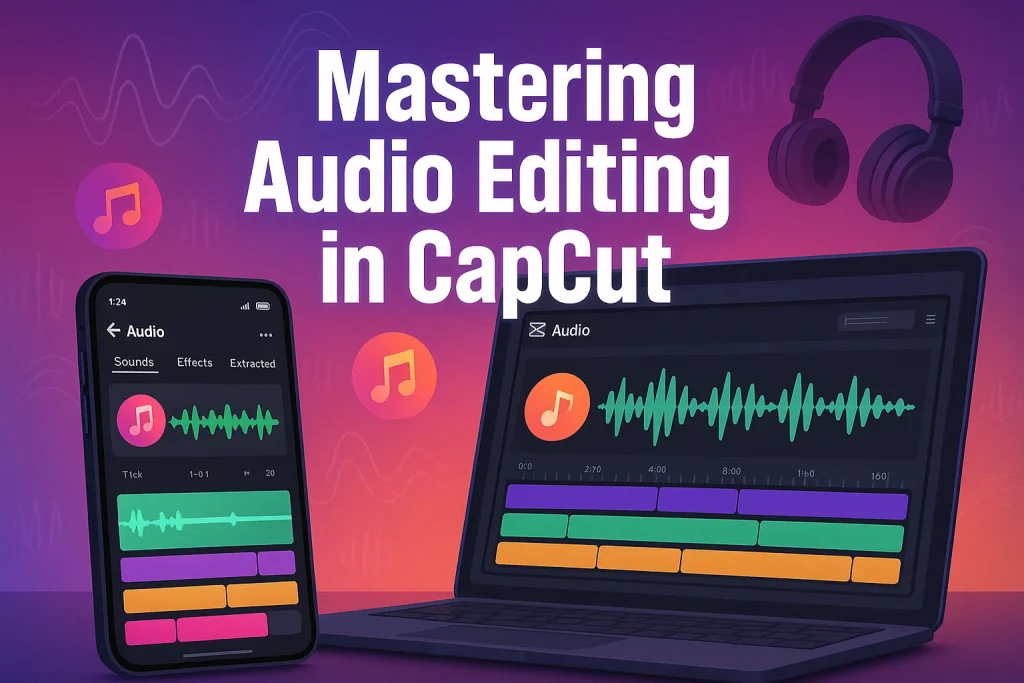
How to Edit Audio in CapCut?
1. Getting Started with CapCut’s Audio Panel
Step 1: Open your project in CapCut (Mobile or Desktop).
Step 2: Tap or click on the “Audio” tab at the bottom (mobile) or top bar (desktop).
Here you’ll see four main options:
- Music – Royalty-free tracks categorized for easy browsing
- Sound Effects (SFX) – Ambient noises, actions, reactions
- Voiceover – Record your own narration directly
- Extracted – Pull audio from existing videos
Pro Tip: Use headphones while editing to catch minor glitches.
2. Adding Music and Sound Effects
Step 1: Tap on Music in the Audio tab
- Browse by genres like Vlog, Cinematic, Beats, Chill, Electronic, and more
- Tap a track to preview
- Tap “+” to add it to your timeline
Step 2: Tap on Sound Effects
- Explore categories like Transition, Nature, Pop-ups, Applause, etc.
- Tap “+” to insert into timeline
Step 3: For existing video clips:
- Tap “Extracted” > Select a video > Tap “Import Audio Only”
Use Case: Add suspenseful background music, comedic sound effects, or re-use dialogue from old videos.
3. Cutting and Trimming Audio
- Step 1: Tap on the audio clip in the timeline
- Step 2: Use the Split button (scissor icon) to cut at any point
- Step 3: Drag the handles at the start or end of the clip to trim manually
Use Case: Cut awkward pauses, sync beats with transitions, or keep audio focused on dialogue only.
4. Adjusting Volume and Fading Audio
Step 1: Tap the audio clip > Select Volume
- Use the slider to increase or decrease loudness
- Use Fade In or Fade Out options to create smoother audio entry/exit
Step 2: Tap Keyframe (diamond icon) to add volume automation points
- You can lower music under dialogue or raise volume during intros
Use Case: Balance voice and background music without one overpowering the other.
5. Using Voice Effects
- Step 1: Tap the voice clip you recorded or extracted
- Step 2: Select Voice Effects
Choose from Chipmunk, Deep, Robot, Echo, Low Pitch, etc.
Use Case: Add character to your voice for skits, reactions, or storytelling.
6. Recording Voiceovers in CapCut
- Step 1: Tap Voiceover (mic icon) in the Audio tab
- Step 2: Press Record – A countdown will begin
- Step 3: Speak while watching the preview. Press stop when done
Use Case: Create tutorials, explain steps, or add commentary without leaving CapCut.
7. Using Beat Detection for Music Sync
- Step 1: Add a music track
- Step 2: Tap on it > Select Beat
CapCut will analyze and drop beat markers automatically on the timeline
Use Case: Sync scene transitions, cuts, or text animations exactly with the music’s rhythm.
8. Noise Reduction and Audio Enhancement
- Step 1: Select the audio clip
- Step 2: Tap Noise Reduction
- Step 3: Adjust strength if options are given
- Step 4: Use Equalizer for sound tuning (bass, mids, treble). Choose presets like “Pop,” “Vocal,” or “Bass Boost,” or go custom
Use Case: Remove room echo, hum, or static. Make dialogue crisper and more focused.
9. Layering and Timing Multiple Audio Tracks
- Step 1: Add multiple audio types—music, voiceover, and sound effects
- Step 2: Use the timeline view to drag and place clips
- Step 3: Clips will snap into place near cuts or transitions for accuracy
Use Case: Create immersive audio design—voice over music with sound effects for added depth.
Best Practices for Audio Editing in CapCut
Audio editing isn’t just about cutting and adjusting—it’s about crafting an experience. After working with hundreds of video projects over the past six years, I’ve learned that even simple audio tweaks can separate average content from high-retention videos.
Here are some practical best practices I recommend:
- Keep your audio layers clean – Avoid overlapping too many sounds. It creates clutter and confuses the listener. Less is often more.
- Balance voice and music – Background music should support, not compete with, your voice. Use volume keyframes to adjust dynamically.
- Use fade-in/out smartly – Harsh audio starts and stops feel jarring. Smooth fades make transitions seamless.
- Sync audio to visual cues – Whether it’s a beat drop or a punchline, align your sound with the visual moment.
- Test with headphones and speakers – What sounds good on your phone may not work on a laptop. Always preview on different devices.
These small habits help you create content that feels polished and professional—even on a mobile editor like CapCut.
Conclusion
Audio is often the secret ingredient behind a video that feels right. In my 6+ years of editing and content strategy, I’ve seen creators transform average videos into highly watchable content—just by getting the sound right. CapCut makes professional-level audio editing approachable for everyone. From voiceovers and music sync to noise reduction and layering, the tools are there—you just need to use them with intention.
Start small: trim, fade, balance. Then experiment with beat detection, effects, and EQ. You’ll be surprised how much more engaging your videos become. If your visuals tell the story, your audio brings it to life.
